> For the complete documentation index, see [llms.txt](https://docs.hello-lisa.com/llms.txt). Markdown versions of documentation pages are available by appending `.md` to page URLs; this page is available as [Markdown](https://docs.hello-lisa.com/knowledge/general/users-and-permissions/modify-user-details-scopes-avatar.md).
# Modify User Details, Scopes, Avatar
### QUICK ACTIONS Groups and Scopes
### STEP 1: Locate User
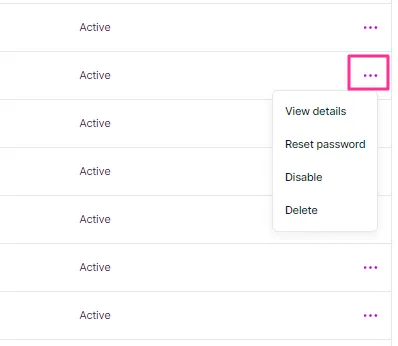
Locate the user and click on the three dots on the right next to the user. Select View Details.
### Change the display name
In the User details view, click on the Edit button in the top right corner and change the Display name. Don't forget to save.
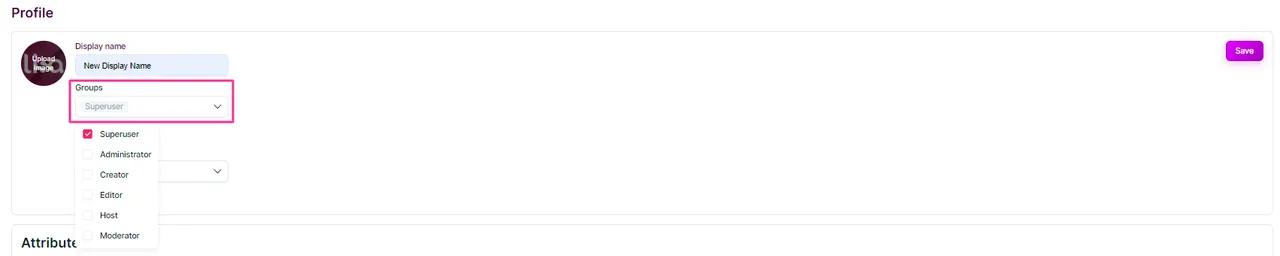
### Change the user groups
In the User details view, click on the Edit button in the top right corner and change the Groups. You can tick multiple boxes. Don't forget to save.
### Change the user scope
{% hint style="info" %}
"**All**": this means the user can see/edit/delete etc... All items
"**Own**": this means the user can only see/edit/delete etc... items they have created / been assigned to
{% endhint %}
In the User details view, click on the **Edit button** in the top right corner and change the
### Change profile image / avatar
In the User details view, click on the Edit button in the top right corner and change the Upload Image.
{% hint style="info" %}
The avatar image is rounded. We recommend the following dimensiion 200x200
{% endhint %}
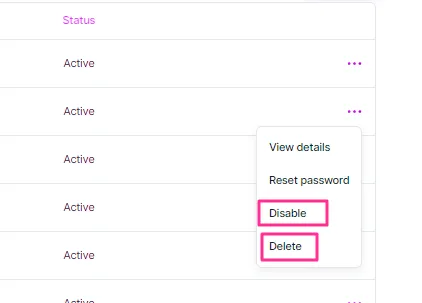
### Disable or Delete a User Account
Click on the three lines next to a user to either Disable (freeze) or Delete (delete) the account
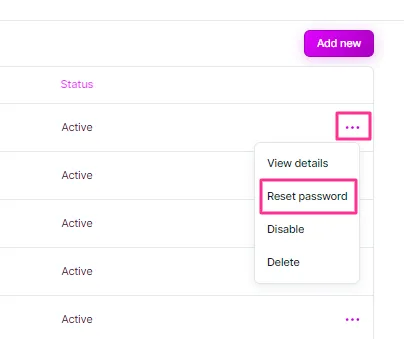
### Password Reset
While every user can reset their password from the login screen, you can force one, too. Locate the user account you want to delete and click on the three dots on the right side next to the user account. Select Reset password and confirm.
{% hint style="warning" %}
Password reset will only work if the user has logged into the account at least once within 7 days upon account creation. Password reset does not work if the user has never logged into the account.
{% endhint %}