> For the complete documentation index, see [llms.txt](https://docs.hello-lisa.com/llms.txt). Markdown versions of documentation pages are available by appending `.md` to page URLs; this page is available as [Markdown](https://docs.hello-lisa.com/knowledge/notifications/sales-notification.md).
# Sales Notification
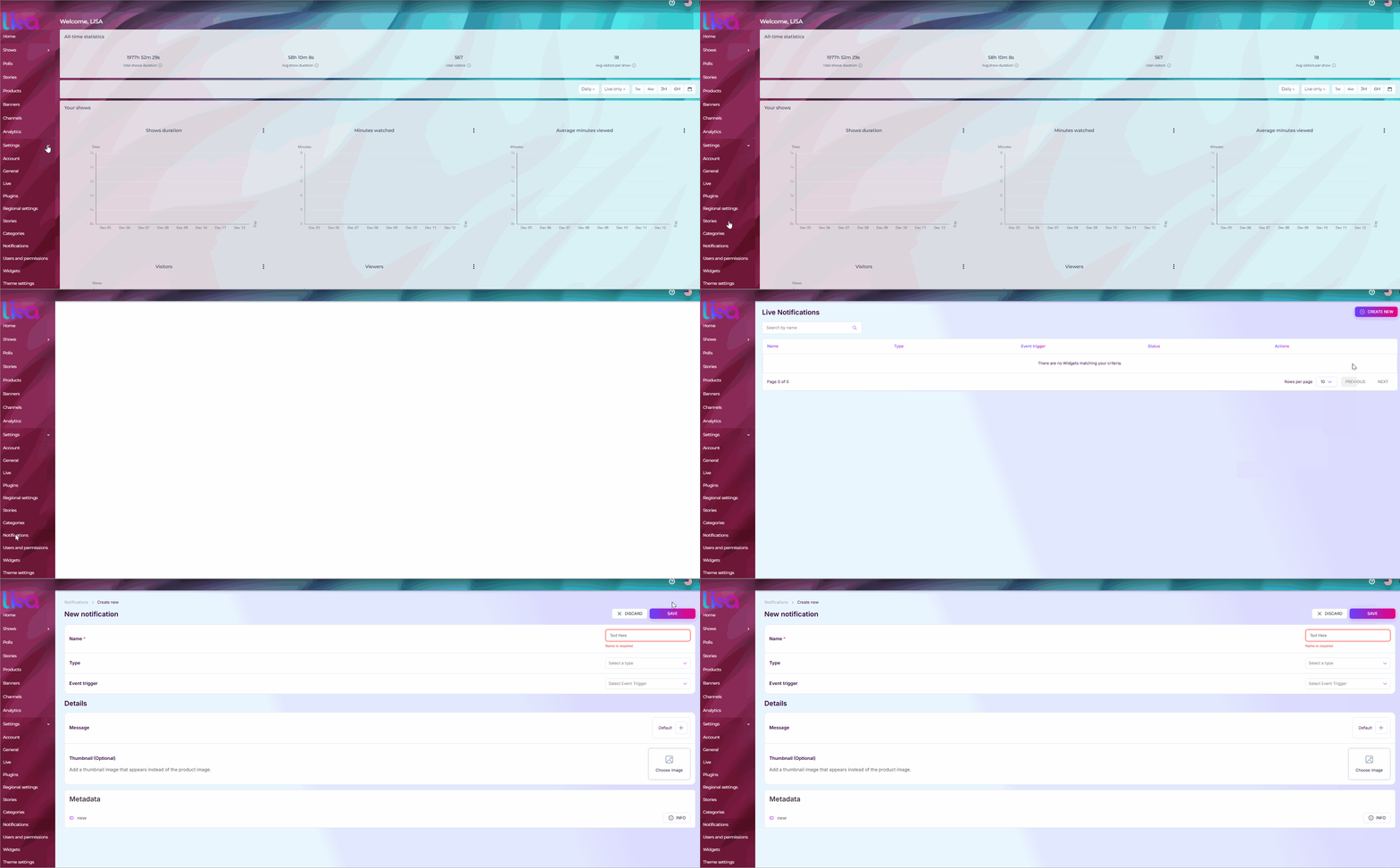
Navigtae to Settings -> Notifications
### STEP 1: Create New
Click on **Create New** in the top right corner and you'll see a template which we need to fill out.
### STEP 2: New notification
In the following template you'll need to set up details regarding this notification.
Fill out Name, Type and Event Trigger based on the Notification you are building.
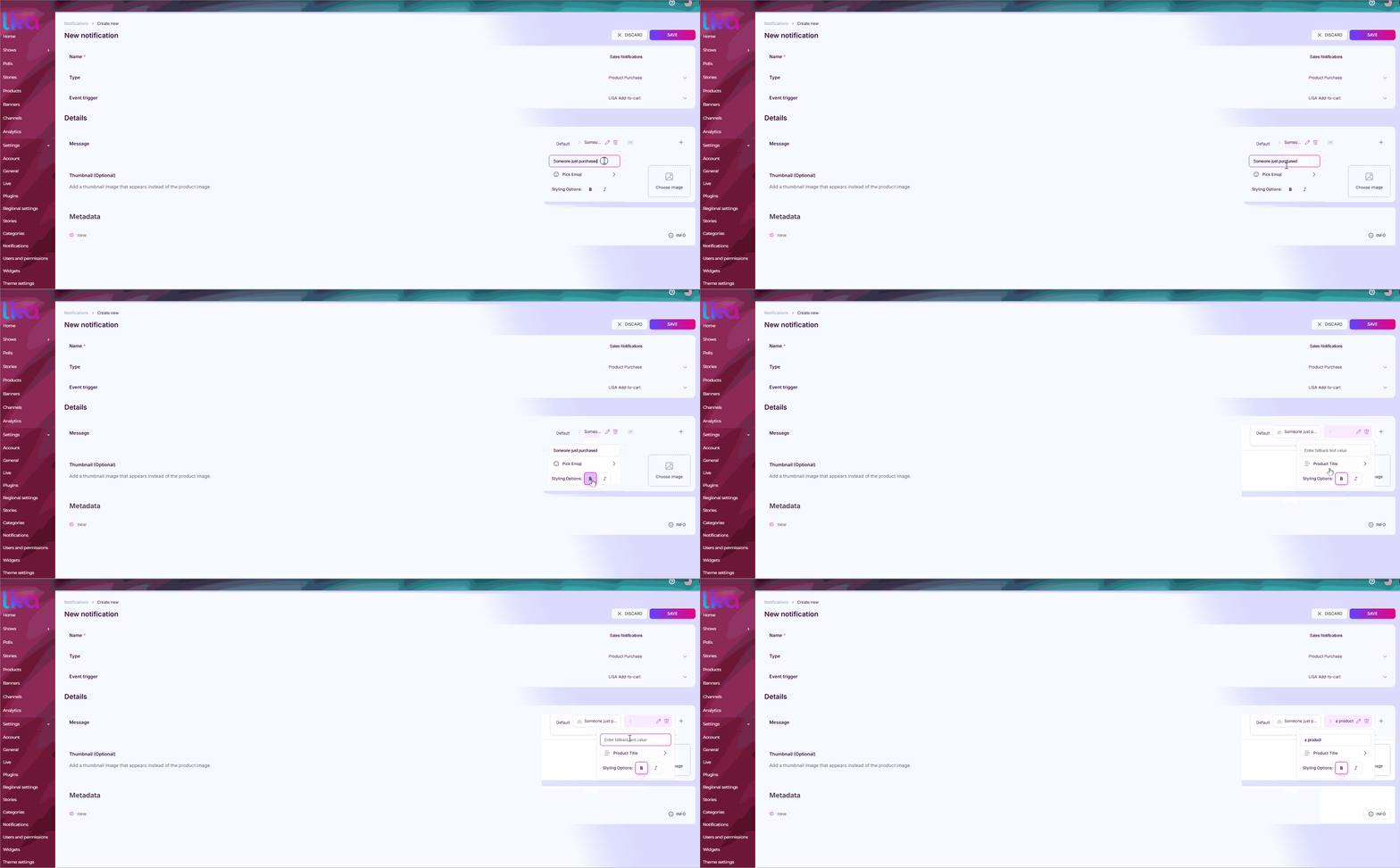
### STEP 3: Customized Message
You can customize the displayed message when the notification shows.
Example: Someone just purchased {Product\_Name}
Use Text Blocks and Paramter Blocks to customize the message.
### STEP 4 Optional: Thumbnail
Add a thumbnail image that appears instead of the product image.