> For the complete documentation index, see [llms.txt](https://docs.hello-lisa.com/llms.txt). Markdown versions of documentation pages are available by appending `.md` to page URLs; this page is available as [Markdown](https://docs.hello-lisa.com/knowledge/products-and-engagement/products/create-a-product-manually.md).
# Create a Product Manually
You can create as many products as you like with LiSA and the process is quick and easy.
### STEP 1: NAVIGATE TO PRODUCTS
In the main menu on the left, naviagte to Products to open the drop down menu. Then select Products
You will now see a list of all created products if any have been created yet.
### STEP 2: CREATE PRODUCT
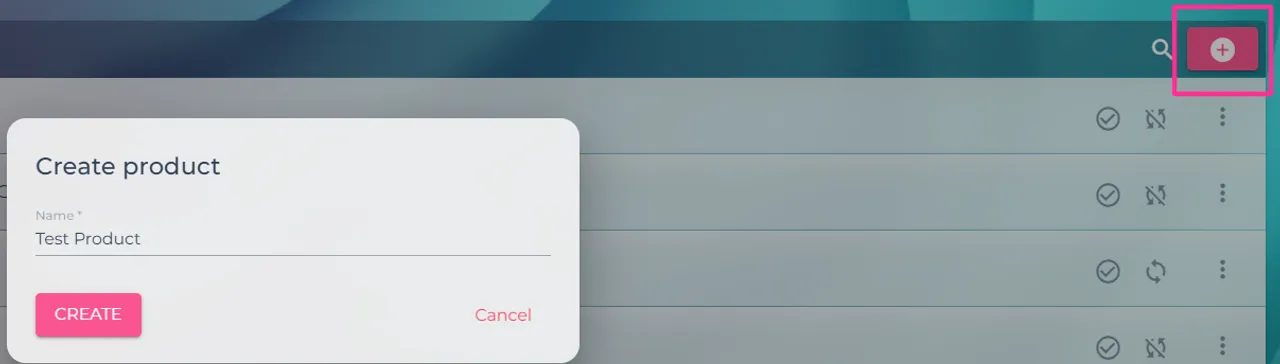
Click on the + icon in the top right corner of the list and give your product a name. Click on **create** and you will enter the product details.
### STEP 3: CHANGE INFORMATION
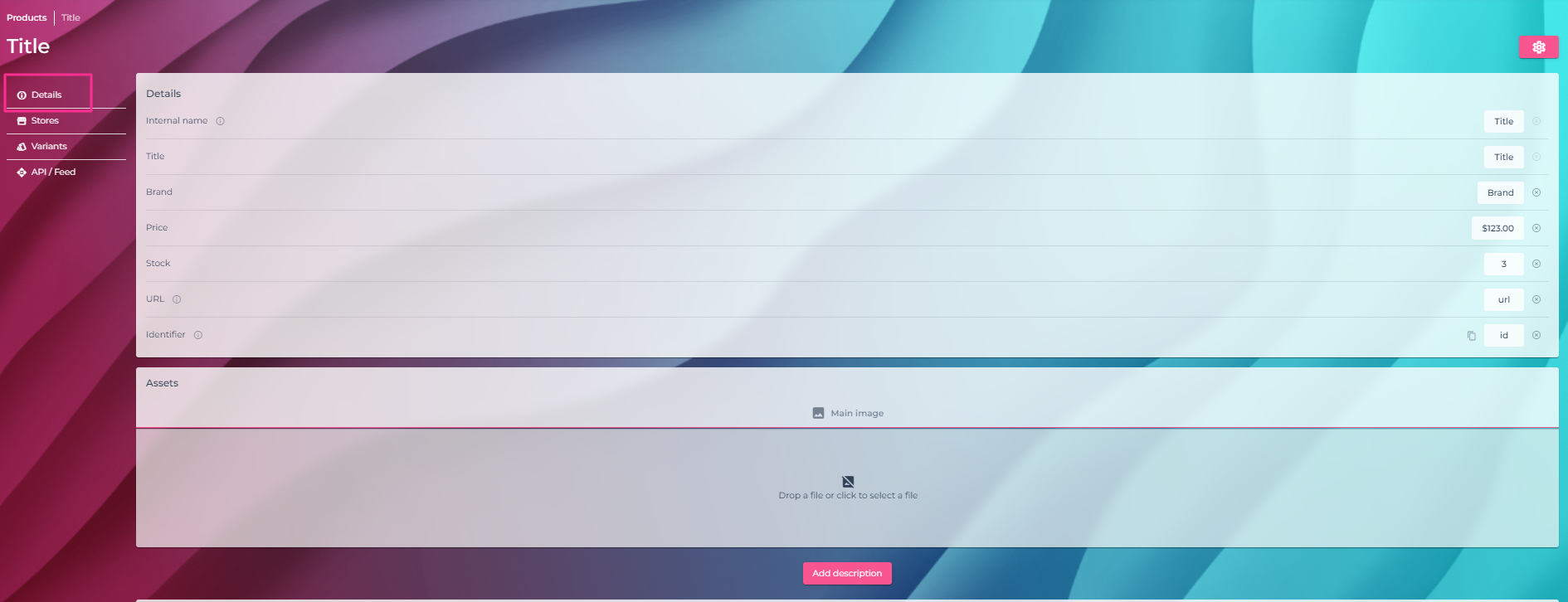
Once you are inside the product details, you will have to provide product information in the sub menu of this product.
**Details**
| Internal name | This name is only shown inside the LiSA tool |
| ------------- | ------------------------------------------------------------------------------------------------------------------------- |
| Title | This name is shown to viewers during the event |
| Brand | Enter the brand name which is shown to viewers during the event |
| Price | Enter the product price here. Make sure to select your currency. You can also add a discounted price or pricing for units |
| Stock | Optional: Add stock values |
| URL | Enter the whole product URL from your shop |
| Identifier |
Optional\*
\*used in Snippets Suggestions
|
**Assets**
Upload your product image here by drag and drop or click into the box and upload it from your laptop.
The max. file size is **2mb**
Accepted file extensions: **jpg, png, webp**
### STEP 4: PULISH PRODUCT
To be able to use your product in a show you will have to mark it as ready.
In the top right corner, you will see a gear wheel. Click the button and select "Publish"