> For the complete documentation index, see [llms.txt](https://docs.hello-lisa.com/llms.txt). Markdown versions of documentation pages are available by appending `.md` to page URLs; this page is available as [Markdown](https://docs.hello-lisa.com/knowledge/stickers/polls/set-up-polls.md).
# Set up Polls
Bring more interactivity to yor live shows now!! Let's explore how to set up your first poll.
### STEP 1: CREATE POLL
Navigate into your show and select the Stickers Menu. Click on the + icon and select Poll. Give it a name and click Create
### STEP 2: EDIT YOUR POLL
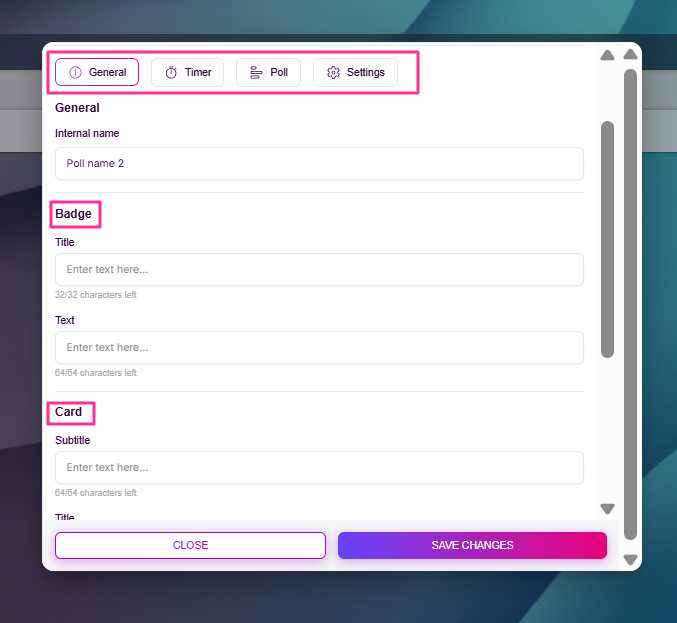
Once you created your poll you will see a window with 4 tabs at the top. General, Time, Poll, Settings
We are inside General.
Badge: This is shown to the viewer on poll activation. It could be the question already, but it could also be an invitation to vote e. g. Poll available
Card: will be shown after the click on the badge has happened. Here you will want to ask the question of your poll if you haven't done so yet.
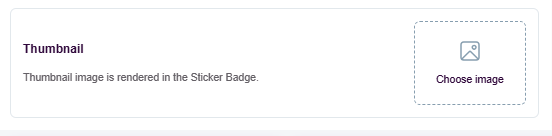
Thumbnail:
By default each LiSA sticker has a default icon which you can replace with a dedicated image yourself. Simply upload an image if you'd like to be changed. Start saving your changes.
### STEP 3: Poll
Select the Poll tab at the top and start entering the choices. 2 at least. you can add more choices as well as decide on the text and results shown after a viewer has voted.
### STEP 4: Settings
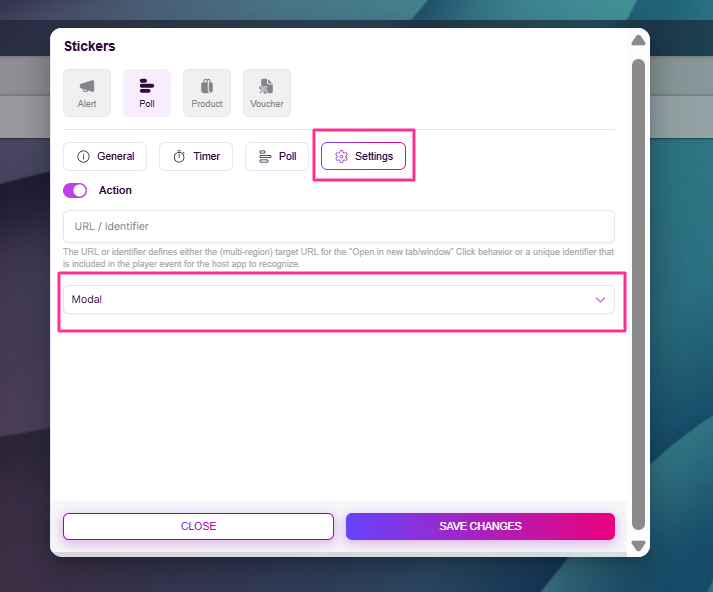
Click onto the Settings tab, toggle the action button and select Modal from the drop down menu and save your changes.
### TIMER (optional)
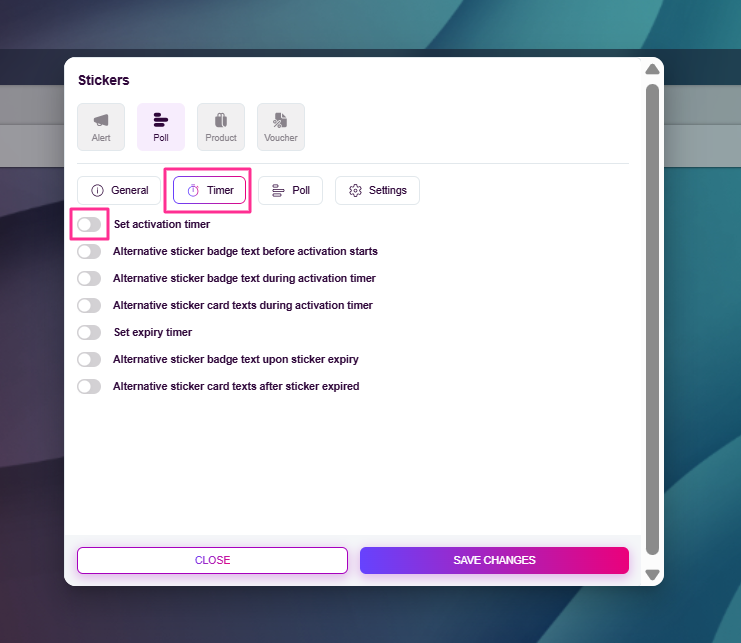
You can give your poll an activation timer as well as an expiry timer. If you decide to do so you will also have options to change text during the different timer phases. In this example we are setting a basic activation timer.
Click on the Timer tab at the top.
You will see a bunch of options you can activate e. g. Set activation timer
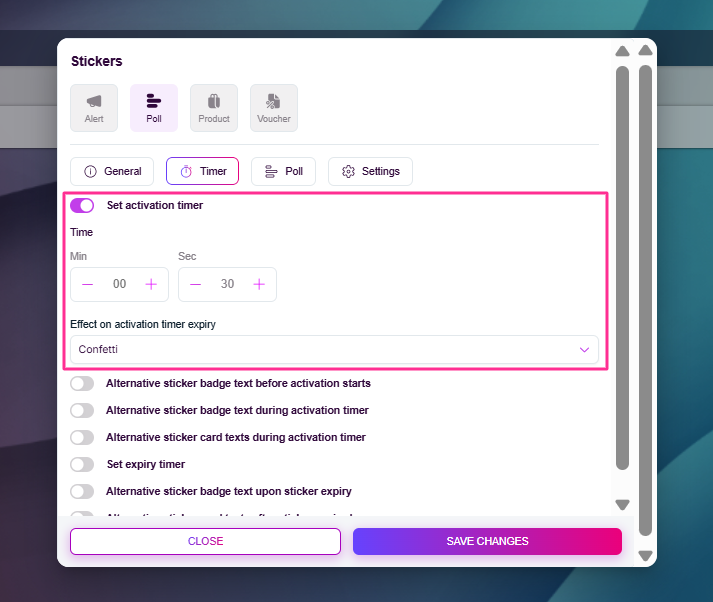
Once you have clicked on it you can select the time for the countdown, before your sticker becomes clickable for example.
Select an effect if you like. We recommend the confetti!